Director Blueprint Example
This demonstrates the process for creating and calling a custom event in a Level Sequence's Director Blueprint. The custom event in this example overrides the material assignment on all static mesh actors. The level sequencer is incredibly powerful and can be used to dynamically modify any parameter of any actor. You can add them directly to the sequencer or gather them procedurally, as in this example.

With a level open and a level sequence added click this icon to open the level sequence's Director Blueprint.

Create a custom event to override all materials on all static mesh actors in the level.
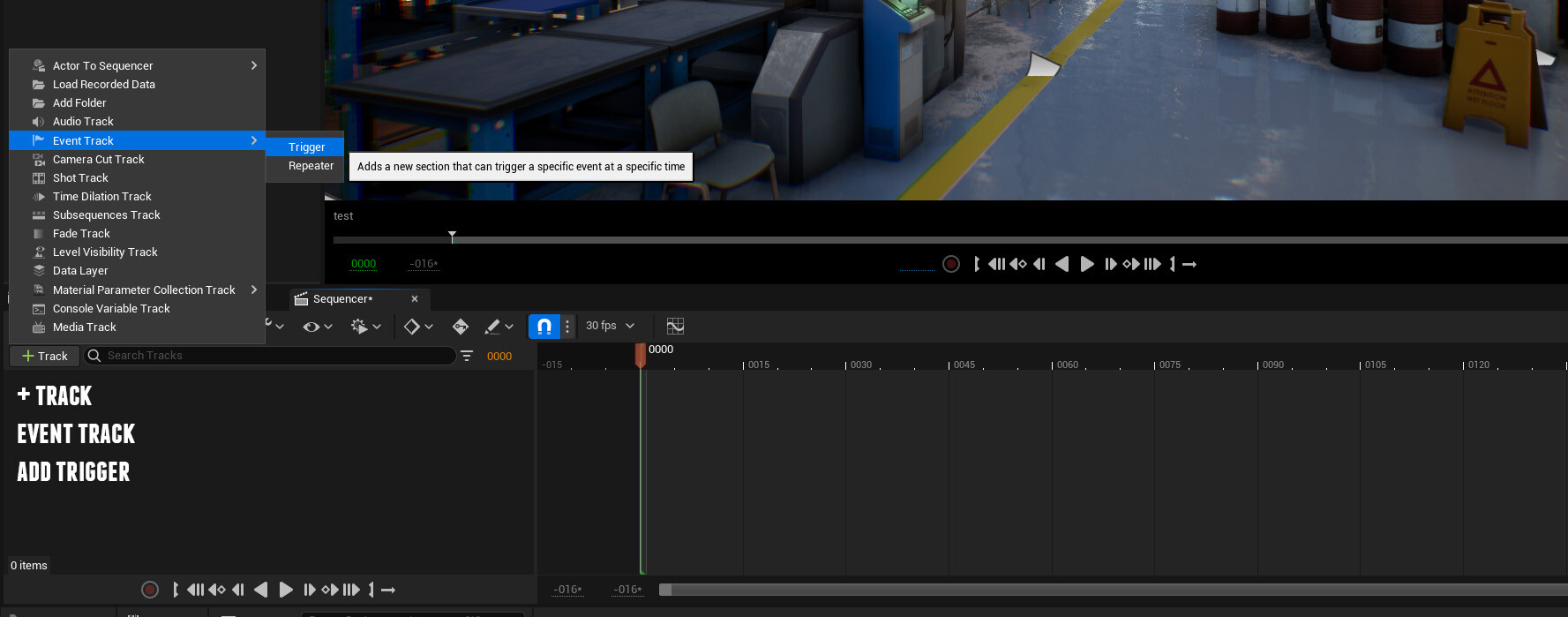
Add a trigger event track to the level sequence.

Add a keyframe to the trigger event track. Note - You can trigger any number of custom events at any frame.
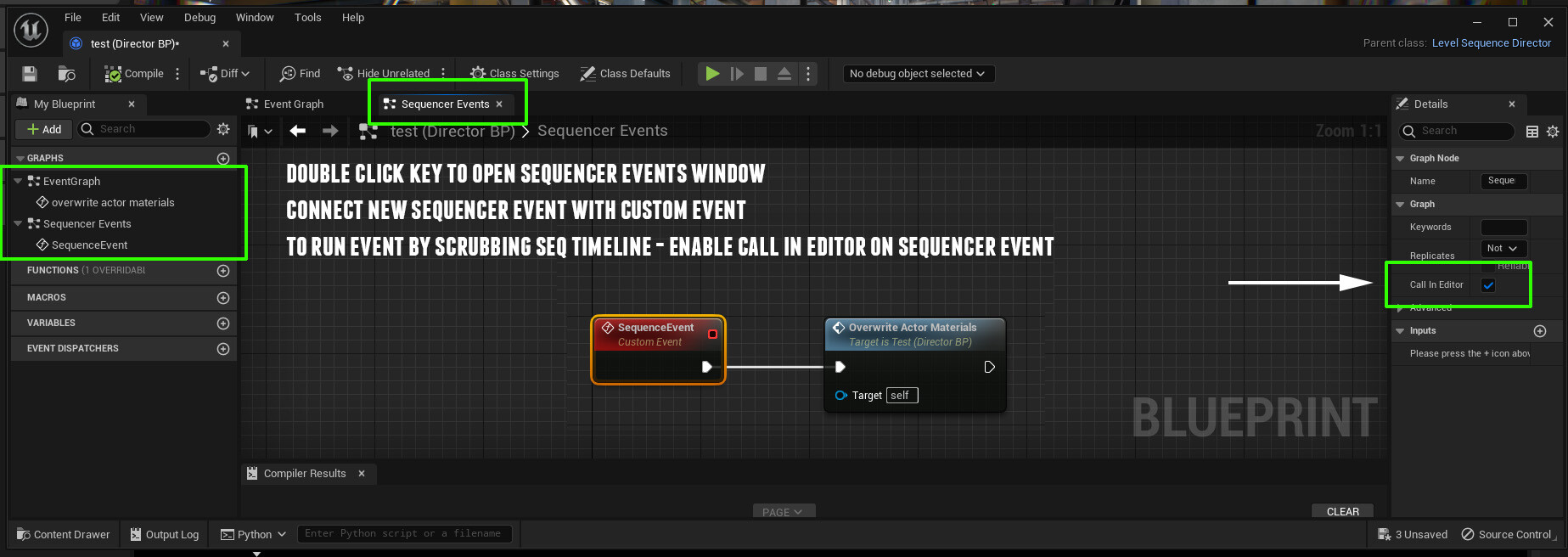
Double click key to open the Direct Blueprint's Sequence Events window and connect the new event to your custom event. If you want to trigger the event by scrubbing the timeline, enable Call In Editor on the Sequence Event.

